
Open the sticker tray in a TikTok chat, take a screenshot and import it into Stiko. The app detects and crops each sticker and adds them to WhatsApp as a pack. If they move, record your screen instead of taking a screenshot.
- Screenshot your TikTok tray
- Stiko crops each sticker
- Add them to WhatsApp
Quick steps
- Open your sticker tray in TikTok. Go into any chat and tap the sticker icon next to the message field.
- Take a screenshot with the stickers fully visible. If they're animated, record your screen for a few seconds.
- Import it into Stiko. The app marks every sticker it finds and crops them.
- Review and tap “Add to WhatsApp”. A pack holds between 3 and 30 stickers.
In this guide
TikTok has no button to export your stickers to WhatsApp, and sharing a video link doesn't add them to your library either. That's why the fastest method starts from what you already see on screen: Stiko separates every sticker in the screenshot, so you don't have to crop them one by one.
What you need for each type of sticker
TikTok's official help on stickers explains how to use them inside the platform, but not how to export them to other apps. What you save depends on whether the sticker is still or moves:
| What you see on TikTok | What to save | What to create in Stiko |
|---|---|---|
| Several still stickers | A screenshot where they're fully visible | Separate stickers with automatic cropping |
| A sticker in a comment | A screenshot with the drawing visible | A still sticker for your pack |
| A reaction that moves | A video or a screen recording | An animated sticker |
Open the tray and take the screenshot
The sticker tray appears when you open a TikTok chat and tap the sticker icon. Choose the tab with the ones you want to move and take a screenshot where they're fully visible. If you have more than fit on one screen, scroll and take another screenshot: you can import several at once.
Don't let the keyboard, menus or usernames cover the stickers. If the sticker you want is in a video's comments, a screenshot works just the same; the guide to TikTok comment stickers explains how to frame it.
Import and convert without cropping one by one
- Select the screenshot in Stiko. Import the whole image from your gallery; don't prepare a file per sticker.
- Let Stiko detect and crop. The app marks and numbers every sticker it finds.
- Review the crops. Remove the ones you don't want, add any that are missing and adjust an edge if needed.
- Add the pack to WhatsApp. Tap “Add to WhatsApp” and confirm in WhatsApp.
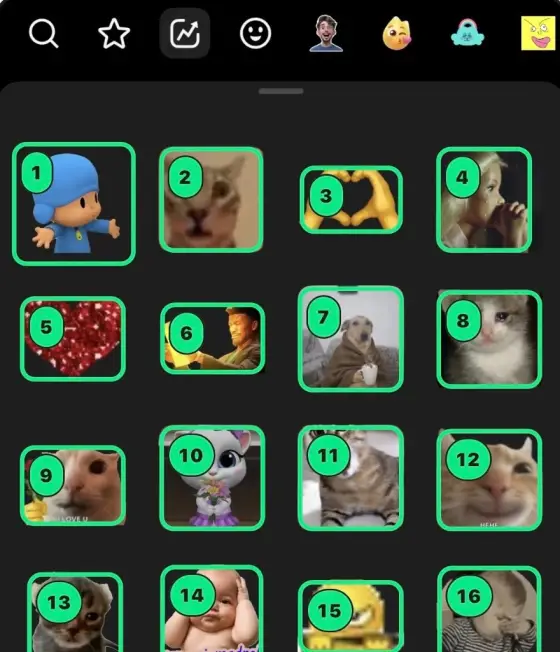
For example, if a screenshot has nine reactions, cropping them by hand means repeating the work for each one. With Stiko you import the whole screenshot and review pieces that are already separated. The benefit is automating that repetitive work, although a tricky screenshot may need a correction or two.
See how to crop several stickers automatically if you need to adjust edges. If the drawing sits among replies, names and buttons, follow the guide to save stickers from TikTok comments.
If the pack doesn't appear in WhatsApp, go back to Stiko and tap “Add to WhatsApp” again; it's also a good idea to keep both apps up to date.
Animated stickers: record your screen
A screenshot doesn't keep the motion. For animated stickers, open the tray and record your screen for a few seconds without moving it, while the animations loop. Then, in Stiko, choose to move animated stickers and import the recording.
Stiko finds the stickers that move and prepares their loop. You can adjust the crop or the clip for each one and, if the recording also has still stickers, decide whether to include them in the same pack. The guide to animated TikTok stickers for WhatsApp covers the full process. For any other clip in your gallery, see how to turn a video into an animated sticker.
Moving stickers on iPhone and Android
Stiko is available for iPhone and Android. In both cases you start from the file you select: a screenshot for still images or a video for animated ones. The photo picker, permissions and WhatsApp's confirmation may vary depending on the system and the installed versions.
Update Stiko and WhatsApp from your store and check the pack in a chat's sticker panel. If you saved it in Stiko but it doesn't show up in WhatsApp, follow the guide to checking the export.
Can you do it without installing another app?
For a single still sticker you can try cropping the screenshot and using WhatsApp's creation tools. If you have a collection with several drawings, Stiko adds automatic cropping and exports the whole set. The guide to TikTok stickers for WhatsApp without extra apps explains the manual method.
If you're comparing tools for this job, in Stiko vs Stikk we separate the screenshot and video flows and list the sources for the comparison.
Content and trademarks: what to keep in mind
Just because a sticker appears on a platform doesn't mean it's free for any use. Create packs with your own content or content you have permission to use, especially if you plan to share them. Stiko is an independent tool: it isn't affiliated with TikTok or WhatsApp, and it doesn't access your conversations.
Frequently asked questions
Does Stiko download all the stickers I saved on TikTok?
The screenshot method doesn't sync your favorites or pull your whole account. You import what you saved on your phone, Stiko converts it and you choose what goes in the pack.
Does importing a video link also import the stickers in its comments?
No. Link import, in the Stiko versions that include it, gets the video from the post. For the stickers in its comments you need a screenshot or recording where they're visible. The link uses an online service; the files in your gallery are processed on the device. See the privacy policy for each flow.
Do I need to sign in to TikTok inside Stiko?
Not for this flow. You select a screenshot or recording you saved on your phone. A Stiko account is also optional for creating stickers.
Can I import a whole gallery at once?
You can select several screenshots and review the candidates Stiko finds. The quality of the result varies with the gallery's layout; always review the selections.
How is this different from creating a sticker in WhatsApp?
WhatsApp lets you create stickers and packs inside the app. Stiko focuses on the case of a screenshot that contains several stickers: it detects the areas and lets you review the set before exporting. You can read about the current features in WhatsApp's help.
From a screenshot to your WhatsApp pack
Stiko detects and crops the stickers in your screenshot. Review the result and export the pack straight to WhatsApp.